DNS Resolution Explained: A Beginner's Guide

So have you ever typed name of a website on your browser? Let’s say you typed chaicode.com and boom your website loads. But do you know that the browser does not understand plain english? Browser requires the IP address for the site to load. IP is internet protocol ,imagine it as the address of your site.
What is DNS ?
DNS is doamin name system. Imagine DNS like the Aunty of you nieghbourhood who knows information about everyone in the nieghbourhood. We will imagine DNS as a phonebook. Here is the analogy of the DNS ,in phonebook you save a number corrosponding to its name.Similarly dns works you type a name of a website then dns is responsible for giving the IP of the website to the browser.

Why DNS Resolution Is Layered ?
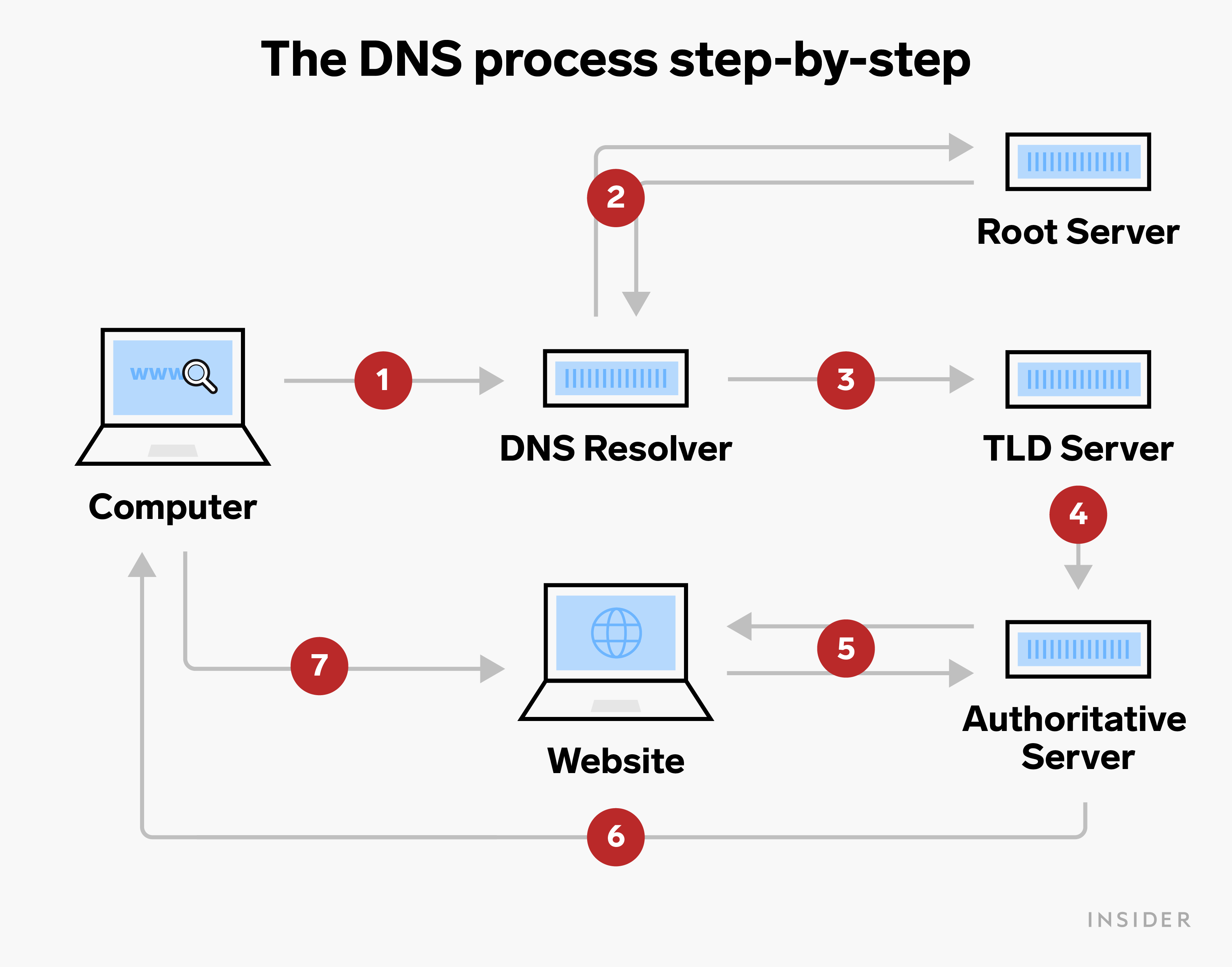
There is no single server that knows all domain names.Instead, DNS is designed as a hierarchical, distributed system so it can efficiently handle many queries at once.Modern DNS architectures use global, distributed networks (Anycast routing) to ensure low-latency resolution and high uptime.It aligns with Zero Trust by ensuring all connections are validated. When you type url of your website a dns query is raised it goes to root server , let’s say you typed google.com the root server says theeese are the TLD servers of .com. Then TLD servers tell theese are the authorative servers of .com and finally the authorative serevers give the a record that is the ip address of your site.
Why was a diagnostic tool required ?
Browser hides all the information like we discussed above root servers return tld but browser hides this information. BUt when you deploy your site you may need this information for the process of debugging like what went wrong in your deployment of your website. So here dig command comes to reescue the information which was hidden by your browser dig shows all the information from root servers to authorative servers
The dig Command:
dig (Domain Information Groper) is a handy command-line tool to see what’s going on in DNS.
We can use dig to:
Find out which servers answer for a domain
See each layer of the DNS journey
Troubleshoot issues when a website won't load
so now lets look at the commands of dig below:
1) dig . NS
“NS” asks for Name Server records basically, who are the root name servers?
The
.represents the root of the DNS hierarchy.dig . NS ; <<>> DiG 9.10.6 <<>> . NS ;; global options: +cmd ;; Got answer: ;; ->>HEADER<<- opcode: QUERY, status: NOERROR, id: 35446 ;; flags: qr rd ra; QUERY: 1, ANSWER: 13, AUTHORITY: 13, ADDITIONAL: 0 ;; QUESTION SECTION: ;. IN NS ;; ANSWER SECTION: . 87203 IN NS j.root-servers.net. . 87203 IN NS k.root-servers.net. . 87203 IN NS e.root-servers.net. . 87203 IN NS g.root-servers.net. . 87203 IN NS b.root-servers.net. . 87203 IN NS a.root-servers.net. . 87203 IN NS f.root-servers.net. . 87203 IN NS c.root-servers.net. . 87203 IN NS i.root-servers.net. . 87203 IN NS l.root-servers.net. . 87203 IN NS d.root-servers.net. . 87203 IN NS h.root-servers.net. . 87203 IN NS m.root-servers.net. ;; AUTHORITY SECTION: . 87203 IN NS k.root-servers.net. . 87203 IN NS e.root-servers.net. . 87203 IN NS g.root-servers.net. . 87203 IN NS b.root-servers.net. . 87203 IN NS a.root-servers.net. . 87203 IN NS f.root-servers.net. . 87203 IN NS c.root-servers.net. . 87203 IN NS i.root-servers.net. . 87203 IN NS l.root-servers.net. . 87203 IN NS d.root-servers.net. . 87203 IN NS h.root-servers.net. . 87203 IN NS m.root-servers.net. . 87203 IN NS j.root-servers.net. ;; Query time: 58 msec ;; SERVER: 100.64.0.1#53(100.64.0.1) ;; WHEN: Thu Jan 22 17:58:59 IST 2026 ;; MSG SIZE rcvd: 397
What we see is a list of root servers with names like a.root-servers.net, b.root-servers.net, and so on.
Why it matters: These are the first “gatekeepers” of DNS, directing our query to the next layer.
2) dig com NS
This command asks the DNS hierarchy: “Who manages domains ending with
.com?”It queries the root servers, which answer with the NS records for the
.comtop-level domain.dig com NS ; <<>> DiG 9.10.6 <<>> com NS ;; global options: +cmd ;; Got answer: ;; ->>HEADER<<- opcode: QUERY, status: NOERROR, id: 24687 ;; flags: qr rd ra; QUERY: 1, ANSWER: 13, AUTHORITY: 13, ADDITIONAL: 0 ;; QUESTION SECTION: ;com. IN NS ;; ANSWER SECTION: com. 21600 IN NS c.gtld-servers.net. com. 21600 IN NS l.gtld-servers.net. com. 21600 IN NS j.gtld-servers.net. com. 21600 IN NS i.gtld-servers.net. com. 21600 IN NS a.gtld-servers.net. com. 21600 IN NS g.gtld-servers.net. com. 21600 IN NS e.gtld-servers.net. com. 21600 IN NS f.gtld-servers.net. com. 21600 IN NS b.gtld-servers.net. com. 21600 IN NS d.gtld-servers.net. com. 21600 IN NS k.gtld-servers.net. com. 21600 IN NS h.gtld-servers.net. com. 21600 IN NS m.gtld-servers.net. ;; AUTHORITY SECTION: com. 21600 IN NS l.gtld-servers.net. com. 21600 IN NS j.gtld-servers.net. com. 21600 IN NS i.gtld-servers.net. com. 21600 IN NS a.gtld-servers.net. com. 21600 IN NS g.gtld-servers.net. com. 21600 IN NS e.gtld-servers.net. com. 21600 IN NS f.gtld-servers.net. com. 21600 IN NS b.gtld-servers.net. com. 21600 IN NS d.gtld-servers.net. com. 21600 IN NS k.gtld-servers.net. com. 21600 IN NS h.gtld-servers.net. com. 21600 IN NS m.gtld-servers.net. com. 21600 IN NS c.gtld-servers.net. ;; Query time: 75 msec ;; SERVER: 100.64.0.1#53(100.64.0.1) ;; WHEN: Thu Jan 22 18:00:11 IST 2026 ;; MSG SIZE rcvd: 427
What we see: Servers like a.gtld-servers.net, b.gtld-servers.net , etc
Why it matters: TLD (Top Level Domain) servers know about all .com domains and where to find out more about them.
3) dig google.com NS
Now, dig asks: “Who is the official source of information for
google.com?”The TLD servers answer with a list of authoritative name servers for
google.comdig google.com NS ; <<>> DiG 9.10.6 <<>> google.com NS ;; global options: +cmd ;; Got answer: ;; ->>HEADER<<- opcode: QUERY, status: NOERROR, id: 20512 ;; flags: qr rd ra; QUERY: 1, ANSWER: 4, AUTHORITY: 4, ADDITIONAL: 2 ;; QUESTION SECTION: ;google.com. IN NS ;; ANSWER SECTION: google.com. 5813 IN NS ns1.google.com. google.com. 5813 IN NS ns2.google.com. google.com. 5813 IN NS ns3.google.com. google.com. 5813 IN NS ns4.google.com. ;; AUTHORITY SECTION: google.com. 5813 IN NS ns2.google.com. google.com. 5813 IN NS ns3.google.com. google.com. 5813 IN NS ns4.google.com. google.com. 5813 IN NS ns1.google.com. ;; ADDITIONAL SECTION: ns3.google.com. 9198 IN A 216.239.36.10 ns3.google.com. 9198 IN A 216.239.36.10 ;; Query time: 33 msec ;; SERVER: 100.64.0.1#53(100.64.0.1) ;; WHEN: Thu Jan 22 18:01:06 IST 2026 ;; MSG SIZE rcvd: 188What we see: Servers like
ns1.google.com,ns2.google.com, etc.Why it matters: Authoritative name servers hold the latest info like the real IP address of
google.com. When DNS records update, these servers know first.
4) dig google.com
diggoogle.comasks for the address ofgoogle.com.The query moves from our local resolver, to the root, to the
.comTLD, to Google’s authoritative servers.The final answer is an IP address (e.g.,
142.250.67.46).dig google.com ; <<>> DiG 9.10.6 <<>> google.com ;; global options: +cmd ;; Got answer: ;; ->>HEADER<<- opcode: QUERY, status: NOERROR, id: 18480 ;; flags: qr rd ra; QUERY: 1, ANSWER: 1, AUTHORITY: 4, ADDITIONAL: 1 ;; QUESTION SECTION: ;google.com. IN A ;; ANSWER SECTION: google.com. 188 IN A 142.250.67.46 ;; AUTHORITY SECTION: google.com. 5609 IN NS ns1.google.com. google.com. 5609 IN NS ns2.google.com. google.com. 5609 IN NS ns3.google.com. google.com. 5609 IN NS ns4.google.com. ;; ADDITIONAL SECTION: ns3.google.com. 8994 IN A 216.239.36.10 ;; Query time: 59 msec ;; SERVER: 100.64.0.1#53(100.64.0.1) ;; WHEN: Thu Jan 22 18:04:31 IST 2026 ;; MSG SIZE rcvd: 132Output includes:
- An
ANSWER SECTIONwith the IPv4 (A) and/or IPv6 (AAAA) addresses.
- An
Putting It All Together: The Full DNS Journey
Here’s how the lookup travels:
Local Recursive Resolver:
Checks its cache; if it doesn’t know, starts the journeyRoot Name Servers:
Directs the query to the right TLD (like.com)TLD Name Servers:
Points to the domain’s authoritative serversAuthoritative Name Servers:
Give the actual answer for the domain its IP address
Why NS Records Matter
NS (Name Server) records tell us “who is the boss” at each layer.
At every step (root, TLD, domain), NS records connect our request to the right helper in the DNS hierarchy.
If NS records are wrong or missing, sites won’t resolve so they’re critical to a working internet.
Recap
DNS turns names like
google.cominto addresses our computer can use.Resolution happens in steps: root → TLD → authoritative → answer.
The
digtool lets us see and diagnose each part of this process.NS records guide our query at each stage.
This process keeps the internet fast, organized, and reliable every time we visit a website.